
Designing in Canva is often a breeze, but preparing those files for professional printing or sharing can sometimes be tricky. If you have ever sent a file to a printer only to find that fonts have shifted or transparency effects have vanished, you likely ran into a layering issue. The solution is simple: you need to learn how to flatten a design in Canva.
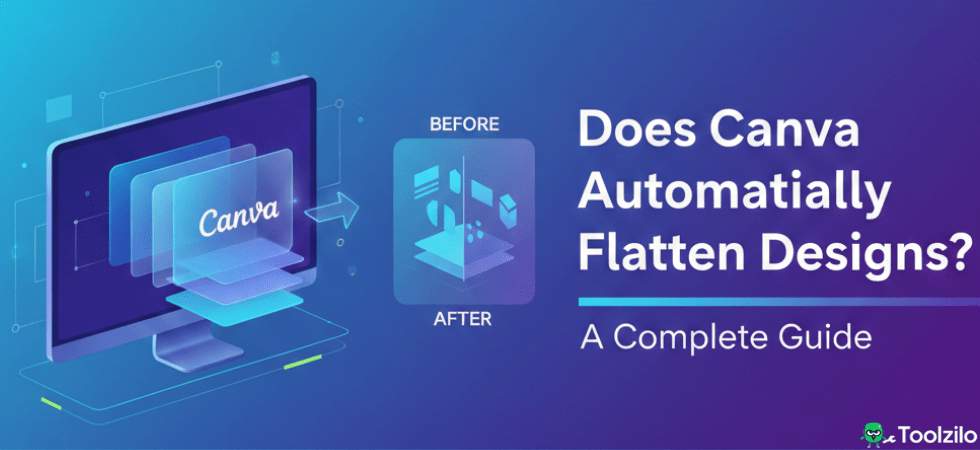
Flattening a design combines all the separate elements—text, images, vectors, and background—into a single, uneditable layer. This process locks everything in place, ensuring that what you see on your screen is exactly what appears on the final print or digital file. Whether you are creating print-ready PDFs or simply want to prevent others from editing your work, flattening is an essential skill.
In this guide, we will walk you through the exact steps to flatten your projects, explain what the different settings mean, and ensure your final export looks professional and polished.
What Does Flattening Mean in Canva?
Before diving into the “how-to,” it is helpful to understand what is happening to your file. When you work in Canva, you are building a composition using multiple stacked layers. Your text sits on top of a shape, which sits on top of an image, which sits on the background.
So, what is flatten pdf in canva or image flattening? It is the process of merging all those stacked layers into one single rasterized image or document. Once flattened, individual elements like text boxes or shapes can no longer be moved, edited, or manipulated. The software treats the entire page as one cohesive picture.
This is particularly important for printing. Professional printers often require flattened PDFs to ensure that complex design elements, such as transparency or custom fonts, process correctly without errors.
Method 1: How to Flatten PDF in Canva (Best for Print)
If your primary goal is to send a document to a professional printer, using the built-in PDF flattening feature is the most efficient method. This option is specifically designed to streamline your file for high-quality production.
Here is how to flatten in canva when exporting as a PDF:
- Open your design in the Canva editor.
- Click the Share button in the top right corner.
- Select Download from the dropdown menu.
- Under “File type,” choose PDF Print. (Note: The “PDF Standard” option does not offer the flattening feature).
- Look for the checkbox labeled Flatten PDF. Click to check it.
- Hit the Download button.
When you select this option, Canva turns your multi-layered design into a single layer within the PDF.
Should I Flatten My PDF in Canva?
You might be wondering, should i flatten my pdf in canva every time?
Not necessarily. You should select this option if:
- You are sending the file to a professional printer.
- Your design uses complex transparency effects or shadows.
- You want to ensure no elements shift during the printing process.
However, if you are just emailing a document to a colleague and want the text to remain selectable or searchable, you should leave the specific “Flatten PDF” box unchecked.
Method 2: How to Flatten Layers in Canva (The Image Workaround)
Sometimes you might want to flatten a design while you are still working on it, or you might need a flattened image file (JPG or PNG) rather than a PDF. Since Canva does not have a “Merge Layers” button like Photoshop, you have to use a simple workaround.
Here is how to flatten layers in canva using the download-and-upload method:
- Finish the portion of the design you want to flatten.
- Click Share > Download.
- Select PNG (for high quality) or JPG (for smaller file size).
- Download the image to your computer.
- Drag and drop that downloaded image back into your Canva uploads tab.
- Add a new page to your design and place the uploaded image onto it.
By doing this, you have effectively learned how to flatten an image in canva. The new image on your canvas is now a single object. You can apply filters to it or resize it, but you cannot change the text or move the original background elements separately.
Does Canva Automatically Flatten Designs?
A common point of confusion for new users is the question: Does Canva automatically flatten designs?
The short answer is: it depends on the file format.
- JPG and PNG: Yes. When you download a design as a standard image file (JPG or PNG), Canva automatically flattens it. You do not need to check a box. The final file is a single image layer.
- PDF: No. Standard PDF exports usually preserve text and vector data as separate information to keep the file size lower and the text crisp. This is why you must manually select “Flatten PDF” in the print settings if you need that specific functionality.
- SVG: No. Scalable Vector Graphics are designed to keep layers and paths distinct so they can be scaled infinitely.
What Does Flatten PDF Mean in Canva for Quality?
When you ask what does flatten pdf mean in canva regarding quality, there is a slight trade-off to consider. Because flattening rasterizes content (turns it into pixels), text may lose a tiny bit of the microscopic crispness that vector text has.
However, for 99% of print jobs, this difference is imperceptible to the naked eye. The benefit of having a stable, error-free print file far outweighs the technical difference in resolution. If you are asking what does flatten pdf mean canva uses for resolution, it typically renders the flattened content at 300 DPI (dots per inch) when “PDF Print” is selected, which is the industry standard for high-quality printing.
Summary: When to Use Each Method
Understanding how to flatten image in canva or PDF files correctly ensures your creative work looks professional every time.
- Use PDF Flattening: When sending brochures, flyers, or business cards to a professional print shop.
- Use Image Download (PNG/JPG): When you want to lock a background, share a preview that can’t be edited, or upload your design to social media.
By mastering these simple export settings, you protect your design integrity and save yourself (and your printer) from technical headaches down the road.
Frequently Asked Questions (FAQ)
What is flatten pdf in canva?
It converts a multi-layered design into a single layer within a PDF file to prevent printing errors.
Does Canva automatically flatten designs?
Canva automatically flattens JPG and PNG downloads but requires manual selection for PDFs.
How to flatten an image in canva without downloading?
You cannot currently merge layers inside the editor without downloading and re-uploading the file.
Should i flatten pdf on canva for digital sharing?
No, keep it unflattened for digital sharing so text remains searchable and links remain clickable.
What does flatten pdf mean in canva regarding editing?
It means the text and elements in the final file cannot be selected, edited, or moved by the recipient.
How to flatten layers in canva specifically for social media?
Simply download your design as a PNG or JPG file, which automatically merges all layers.
Conclusion
Knowing how to flatten a design in Canva is a small but critical step in the design workflow. It is the difference between a print job that comes out perfectly and one that is missing fonts or graphics. Whether you choose the “PDF Print” checkbox for high-quality brochures or the PNG workaround for social media graphics, flattening gives you total control over the final appearance of your work. Next time you hit that “Share” button, you can do so with confidence, knowing your layers are secure.