
Learning how to flip an element in Canva is one of the quickest ways to transform your designs. Whether you need to mirror a photo for better composition, reverse a graphic to fit a specific layout, or create symmetrical patterns, the flip tool is essential.
While Canva is known for its user-friendly interface, finding specific tools can sometimes be tricky for beginners. This guide covers everything you need to know about flipping images, graphics, and text, ensuring your designs look exactly how you envision them.
Why Flip Elements in Your Design?
Flipping isn’t just about correcting an image that’s facing the wrong way. It is a powerful design technique. Here are a few practical reasons to use this feature:
- Composition Flow: If a subject in a photo is looking off the page, flipping it horizontally can redirect their gaze toward your text, guiding the viewer’s eye.
- Symmetry: Duplicating an element and flipping it creates instant symmetry, perfect for borders and decorative patterns.
- Perspective Correction: Sometimes, a graphic just fits better when mirrored vertically or horizontally.
Understanding how to flip canva element options gives you more creative control without needing advanced software like Photoshop.
How to Flip an Image or Graphic on Desktop
Flipping an element on the desktop version of Canva is straightforward. The process is identical whether you are using the web browser or the desktop app.
- Select Your Element: Click on the photo, graphic, or sticker you want to adjust. A purple outline will appear around it to show it is selected.
- Locate the Toolbar: Look at the white toolbar above the editor canvas. You will see options like “Edit photo,” “Crop,” and “Flip.”
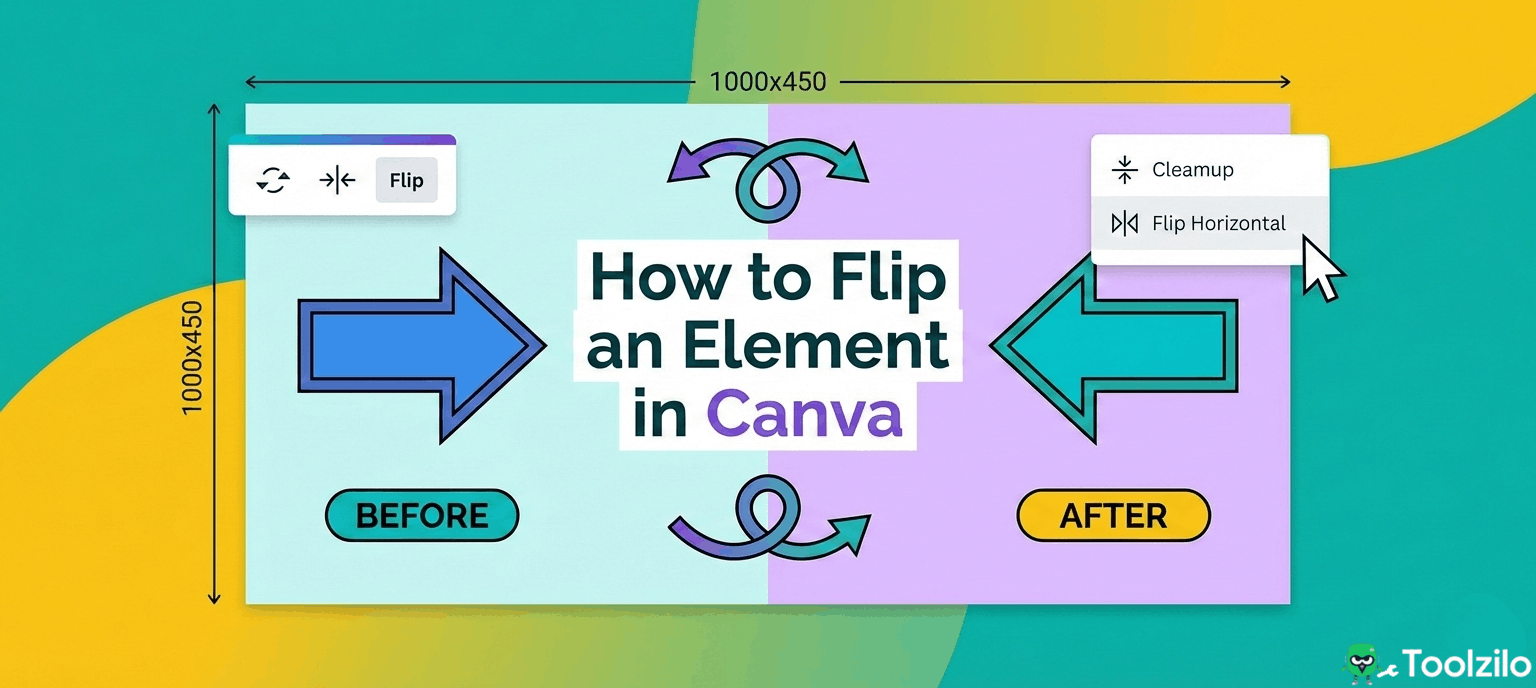
- Click ‘Flip’: Select the “Flip” button. A small dropdown menu will appear with two options:
-
- Flip horizontal: This mirrors the image left-to-right.
- Flip vertical: This mirrors the image top-to-bottom.
- Choose Your Orientation: Click the option that suits your design needs. You can click it again to revert the change if it doesn’t look right.
Note: If you can’t see the “Flip” button, your browser window might be too narrow. Click the three horizontal dots (…) in the toolbar to reveal hidden options.
How to Flip an Element in Canva on iPhone and Android
Designing on the go requires a slightly different workflow. The mobile app interface is compact, so tools are tucked away in menus. Here is how to flip an element in canva on iphone or Android devices:
- Tap to Select: Tap the element you wish to edit on your mobile screen.
- Open the Bottom Menu: Look at the menu bar at the very bottom of the screen.
- Scroll to Find Flip: Swipe left on the bottom menu until you see the “Flip” icon (it looks like two triangles with a line between them).
- Select Direction: Tap “Flip,” then choose either “Flip horizontal” or “Flip vertical.”
The change happens instantly. If you are wondering “how to flip element in canva” while using a tablet or iPad, the process is usually the same as the mobile app.
Can You Flip Text in Canva?
A common question users ask is: “can you flip an element in canva if it is text?”
The answer is yes and no. You cannot flip a standard text box using the standard “Flip” button, as that button often disappears when text is selected. However, there is a workaround if you need mirrored text for a specific artistic effect:
- Save as Image: Type your text, then download that specific page as a PNG with a transparent background.
- Upload the Image: Upload the PNG back into Canva.
- Flip the Image: Now that Canva recognises the text as an image, the “Flip” button will appear in the toolbar, allowing you to flip it horizontally or vertically.
This method is useful for creative typography or preparing designs for transfer printing (like t-shirts) where mirror image text is required.
How to Flip Multiple Elements in Canva
Sometimes you need to mirror an entire section of your design, not just one item. If you are trying to figure out how to flip a group of elements in canva, follow these steps:
- Group the Elements: Select all the items you want to flip by holding the “Shift” key and clicking them (or dragging your cursor over them). Click “Group” in the toolbar or press
Cmd+G(Mac) orCtrl+G(Windows). - Attempt to Flip: You will notice the “Flip” button might be greyed out or missing. Canva does not currently allow you to flip a group of disparate elements (e.g., a photo grouped with text) simultaneously.
- The Workaround: To flip multiple elements in canva, you must either flip them individually or, if they are all vector graphics/images, you may be able to flip them while selected before grouping them. If that fails, flip each item one by one and rearrange them to maintain the layout.
Troubleshooting: Why Can’t I Flip My Element?
If you are asking, “can you flip elements in canva everywhere?” you might run into occasional roadblocks. Here is why the flip option might be unavailable:
- It is a Frame or Grid: Sometimes, empty frames cannot be flipped. Place an image inside the frame first, then try flipping the image.
- It is Text: As mentioned above, live text boxes cannot be flipped directly.
- Locked Elements: Ensure the element isn’t locked. Click the padlock icon in the toolbar to unlock it before editing.
Creative Ways to Use Flipping
Once you master how to flip element on canva, you can experiment with more advanced design concepts.
- Kaleidoscopes: Duplicate an element three times, rotate and flip them to create a circular pattern.
- Reflections: Duplicate an image, flip it vertically, lower the transparency, and place it directly under the original image to create a water reflection effect.
- Face-to-Face: If you have two subjects in different photos looking the same way, flip one horizontally to make them look at each other, creating a connection in the design.
Frequently Asked Questions
How do you flip an element in canva using a keyboard shortcut?
There is no default keyboard shortcut for flipping; you must use the toolbar button.
Can I flip a video in Canva?
Yes, select the video and use the “Flip” button in the top toolbar exactly like an image.
How to flip element image canva specifically for printing transfers?
Flip the entire design horizontally before downloading or use the “Flip horizontal” print setting if available.
Why is the flip button missing?
You likely have text selected, or your browser window is too small (check the “More” three-dot menu).
How to flip grouped elements in canva all at once?
You cannot flip a group containing mixed media; flip items individually or save the group as a single image first.
Can you flip elements in canva frames?
Yes, select the image inside the frame, click “Edit photo” or “Crop,” and use the flip controls there.